
Notion Q1 2026 Round-up
Notion ships fast. Between new features, quiet improvements, and the occasional complete rethink of how something works, it can be difficult to keep up with what's changed and whether it affects how you use the tool. This is a roundup of all the key updates from Q1 2026, organised by theme, with practical use cases for each. I'm working on dedicated articles that go deeper on the major features. If there's something here you'd like me to cover in more detail, leave a comment and I'll add it to the list.
Custom Agents
Availability: Business and Enterprise plans. Includes business trials.
This is by far the most noteworthy launch of the quarter. We now have Custom Agents in Notion. This requires its own article, but for now, here's an overview.
Notion Custom Agents are autonomous AI teammates that run on schedules and triggers, not manual prompts. You set them up once, and they handle recurring work in the background.
You can set Custom Agents up in your sidebar by clicking + next to Agents.
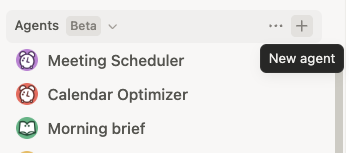
Custom Agents live in your sidebar, where you can create and manage automated workflows like scheduling, reporting, and daily briefings.
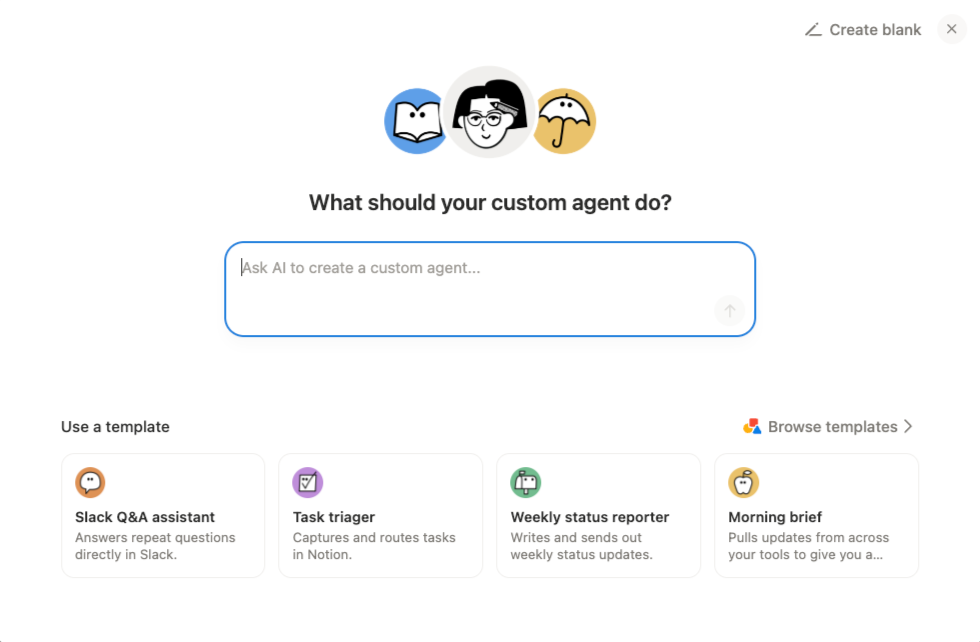
You can start with a blank page, insert a prompt and Notion AI will build out some starter instructions, or browse Notion Agent templates. Templates are a great way to familiarise yourself with Custom Agents and how they work.
Custom Agents do not have full workspace access by default. You decide exactly what each agent can see and do. This is configured in the Tools and access section of your agent's Settings.
You can grant access to:
Specific Notion pages and databases
Web access
AI Connectors
MCP Servers
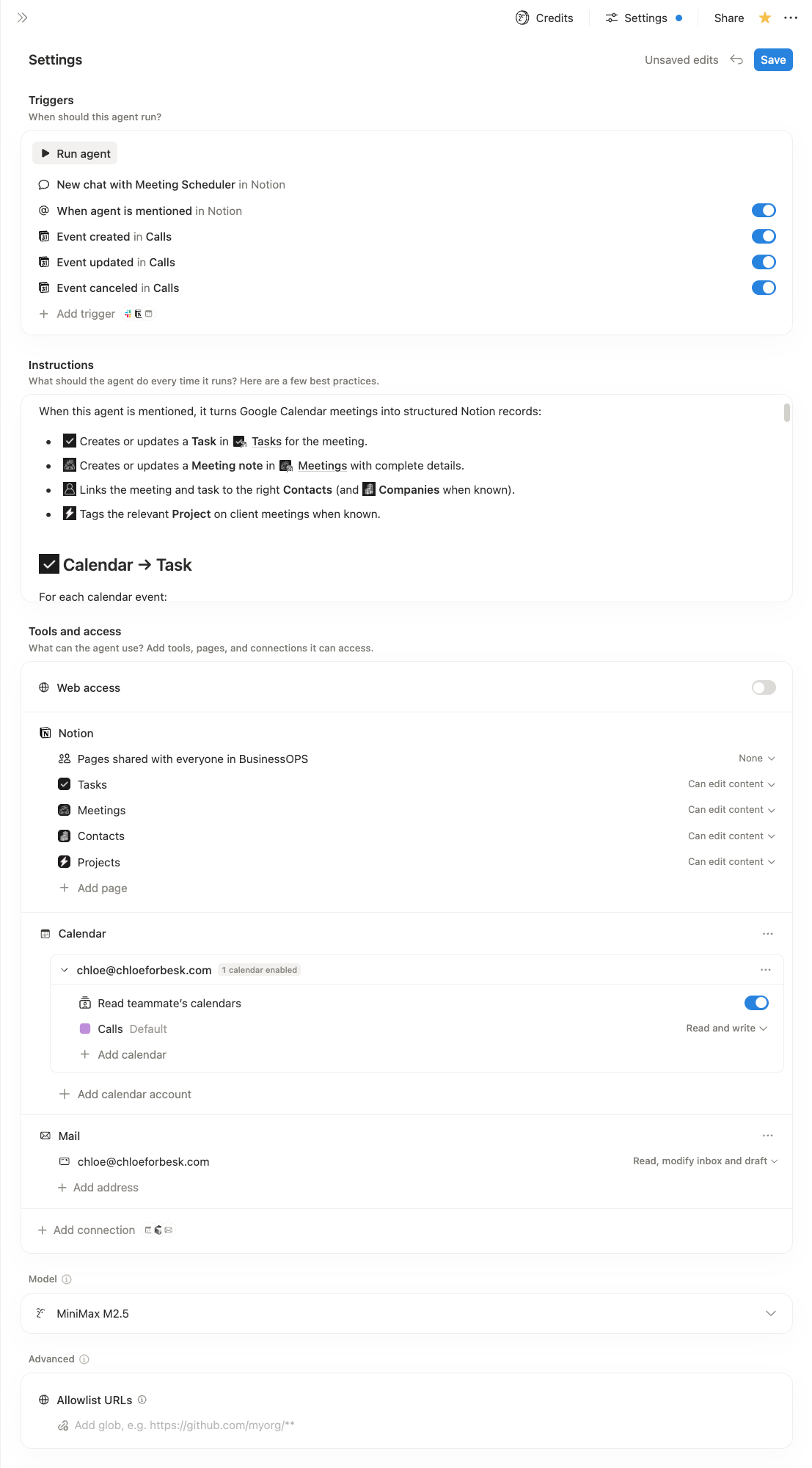
Custom Agent setup in Notion, where you define triggers, instructions, and access to tools like databases and calendars so the agent can run workflows automatically in the background.
Where this is useful:
Calendar Management
Status Reports
Triage and Routing
Client Onboarding
Content Workflows
Workspace Admin Assistant
Custom Agents are available on Notion Business and Enterprise plans, including business trials. Admins can control who in the workspace has permission to create agents, which is useful if you want a controlled rollout.
Right now, they are free to try through 3 May 2026, with credit-based pricing starting 4 May 2026 at $10 per 1,000 Notion credits.
Credit usage depends on task complexity. This makes now the perfect time to experiment because you will be able to monitor your AI usage and determine which workflows and models make sense. You can check your usage any time by going to Settings → Notion AI → Credit Usage.
SIDE NOTE
I have noticed Nosey, our personal AI assistant, make a shift over to the Custom Agents menu. I don't quite know if this keeps all things AI agents organised and easier to manage, or if it just adds more confusion. Maybe it's a sign of how they plan to evolve this in the near future. Share your thoughts?
Dashboard Views
Availability: Business plan and above.
Dashboards are a new database view type that lets you pull multiple views into a single, responsive grid. You can mix data sources, combine charts, tables, lists, and number widgets (views), and filter everything at once through global filters.
How it works:
Dashboards sit alongside your existing view types (table, board, gallery, etc.).
Each widget is its own linked database view. You choose the data source and view type per widget.
You can reuse views from anywhere in the workspace.
Dashboards have a View mode (locked by default, so nobody accidentally breaks your layout) and an Edit mode for configuration.
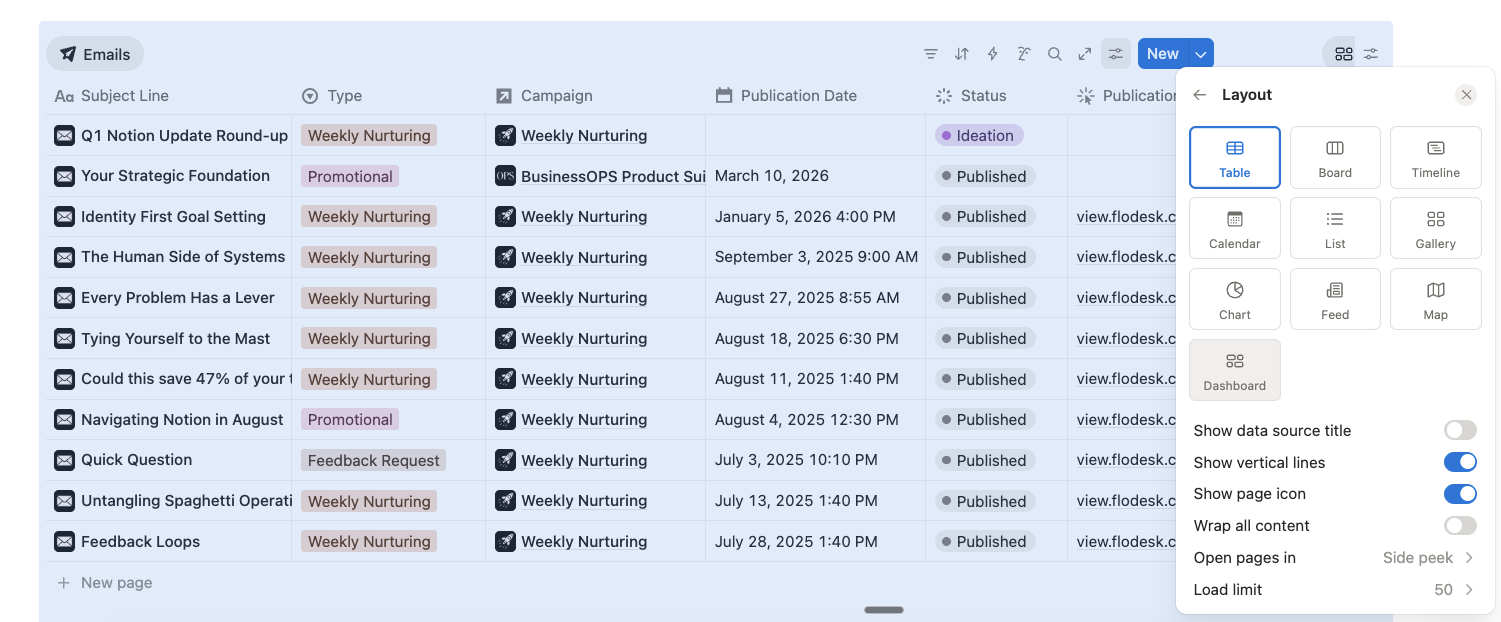
Dashboard view sits alongside your existing database layouts, letting you pull multiple views into one place without restructuring your underlying data.
How to create a dashboard:
Open any database and click the + icon next to your existing views. Select Dashboard from the view type options. Alternatively use your / command to add a Database content block.
Click Add View to start pulling in views from your workspace.
Choose your data source and view type for each widget.
Use global filters to control what's displayed across all widgets at once.
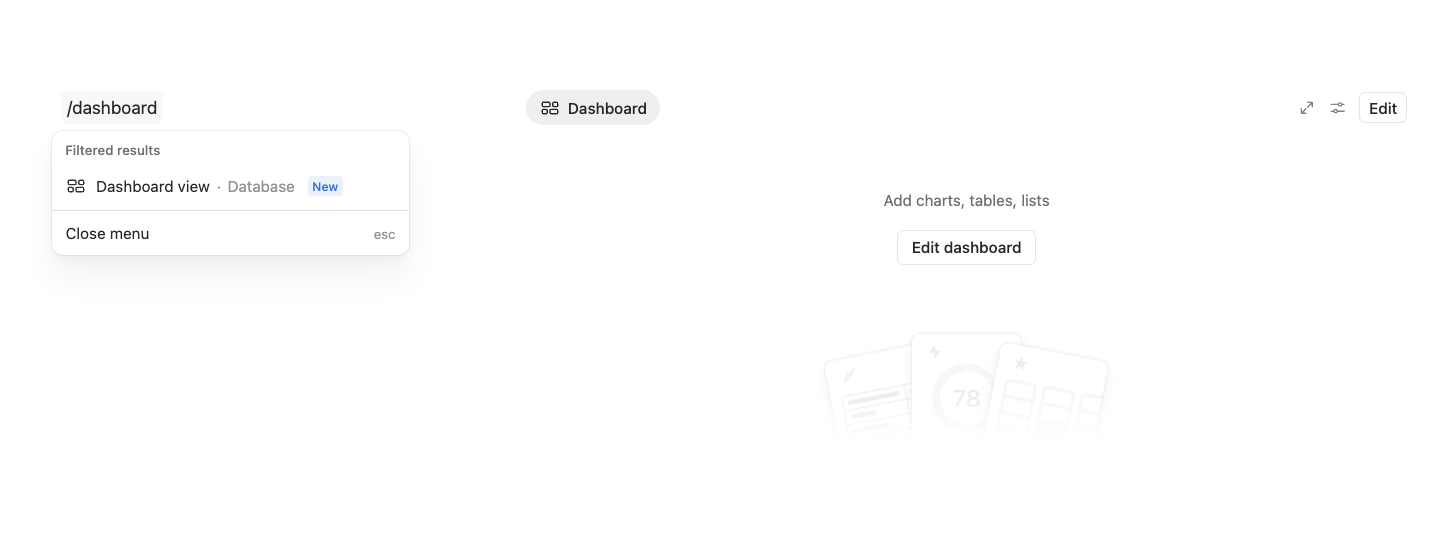
Use /dashboard to add a new dashboard view to your page. You can pull in multiple views from different views in your Notion workspace.
Where this is useful:
Client portals. Create a dashboard filtered to each client so they can see their projects, tasks, documentation, and meeting notes in one glance.
Project oversight. A single dashboard pulling in tasks, timelines, and key metrics across multiple databases.
Financial overview. Combine revenue, expenses, and forecasting databases into one view.
CEO or leadership dashboards. Top-level visibility without having to click through five different pages.
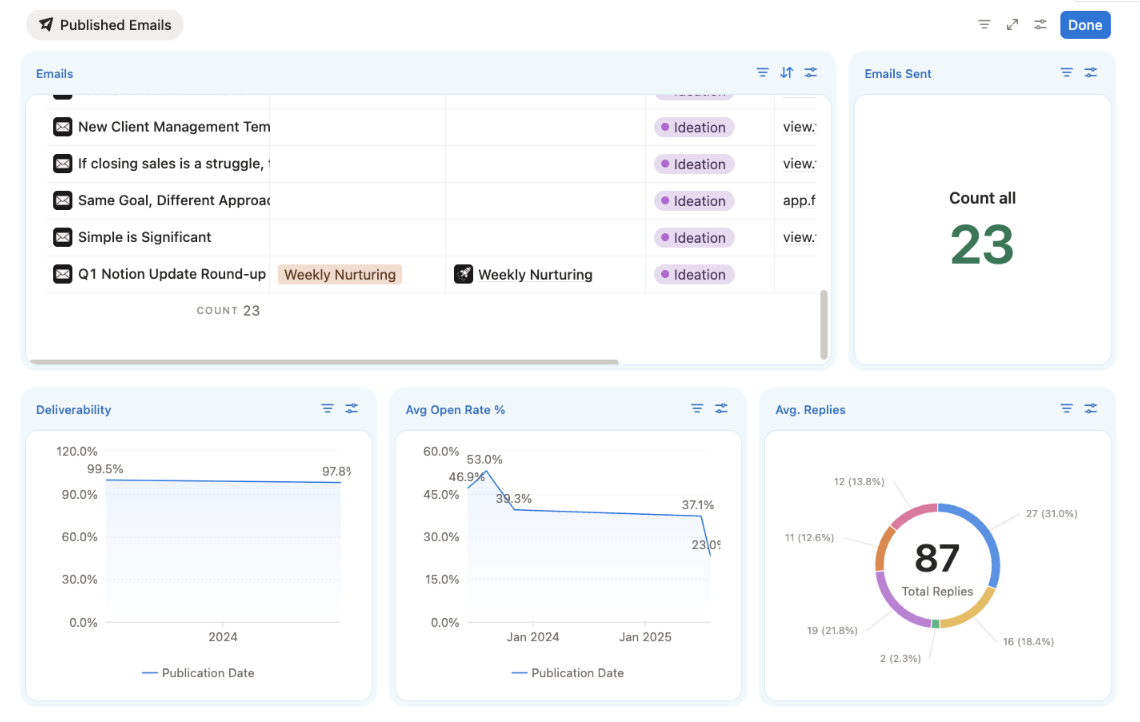
Dashboards bring your data together in one place, making it easier to track performance and understand what’s actually happening across your workspace.
QUICK TIP
Adding a dashboard view within a database template filtered to the current page, is a great way to set up pre-configured dashboards.
Presentation Mode
Availability: Plus plan and above.
Slide decks are now in Notion! You can turn any Notion page into a fullscreen presentation.
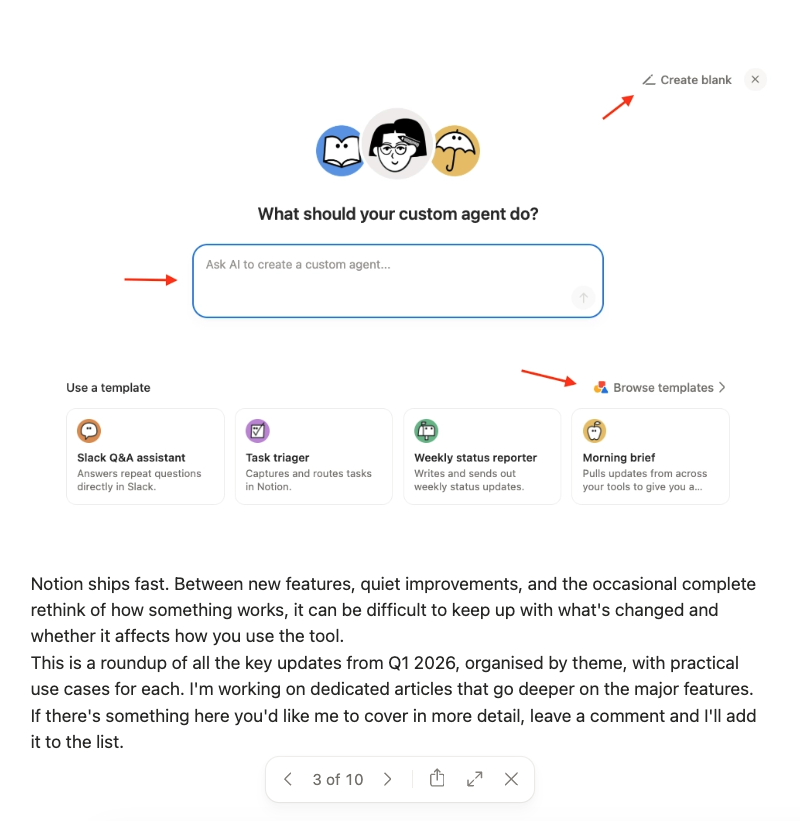
An example slide in Notion presentation mode, showing how existing page content translates directly into a clean, structured slide.
How to set up a presentation:
Open or create any Notion page.
Add your content as you normally would.
Type /divider wherever you want a slide break.
Once you're ready, you can enter presentation mode in a few different ways:
Using the shortcuts ⌘⌥P (Mac), Ctrl+Alt+P (Windows)
Click your page settings (•••) in the top right and select Present
Click the six dots next to the section you want to present and select Present from here.
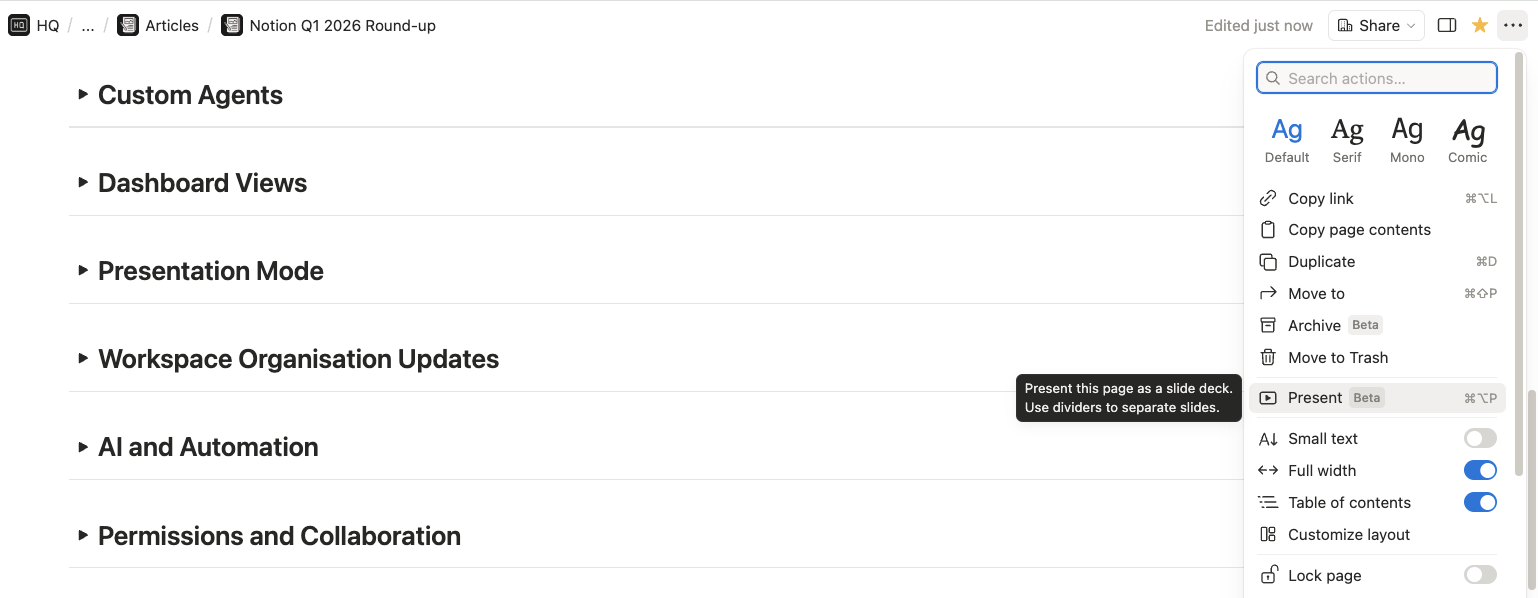
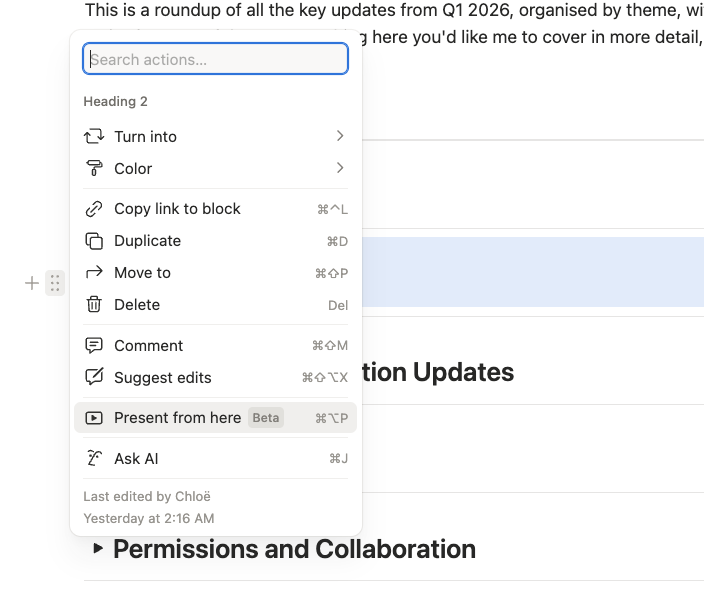
You can launch presentation mode directly from page settings or by clicking the six dots next to any page section, turning your existing Notion content into a slide deck without rebuilding it elsewhere.
The first slide is always your page title and icon on a clean background. You can't customise this yet, but I'd expect that to come.
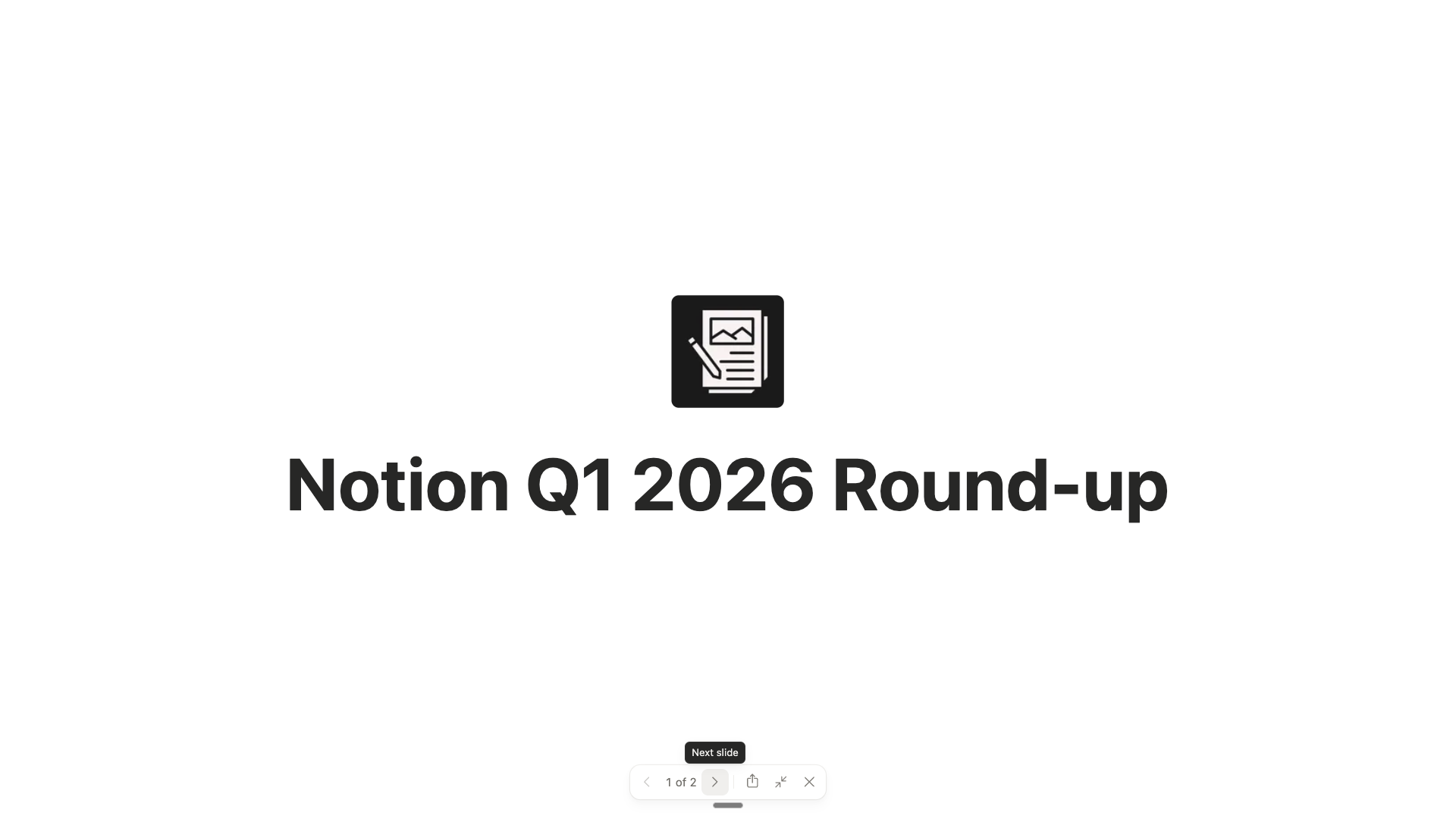
Presentation mode turns any Notion page into a clean slide deck, with your page title automatically becoming the opening slide.
There's something freeing about the constraint here. You're focused on content. The slides are clean, the format is familiar to anyone who uses Notion, and tabs work beautifully inside presentations. This won't replace Keynote or Canva for polished, branded decks. But for the 80% of presentations where content matters more than design, it's brilliant.
Where this is useful:
Internal team updates. You're already writing the content in Notion. Now you don't need to rebuild it in another tool.
Client walkthroughs. Walk a client through a project plan or proposal without leaving Notion.
Quick presentations. When you need something fast and the design doesn't need to be elaborate.
YouTube videos. With so many content blocks and integrations, this is a great way to visually present information.
Workspace Organisation Updates
I'm grouping the next few updates together because they are small upgrades that make a big difference to how we organise and navigate our content on a daily basis.
Tabs
This is a beautiful feature. It's just one that makes your heart happy. Tabs are a new content block type that lets you organise a dense page into horizontal sections without creating subpages or scrolling endlessly.
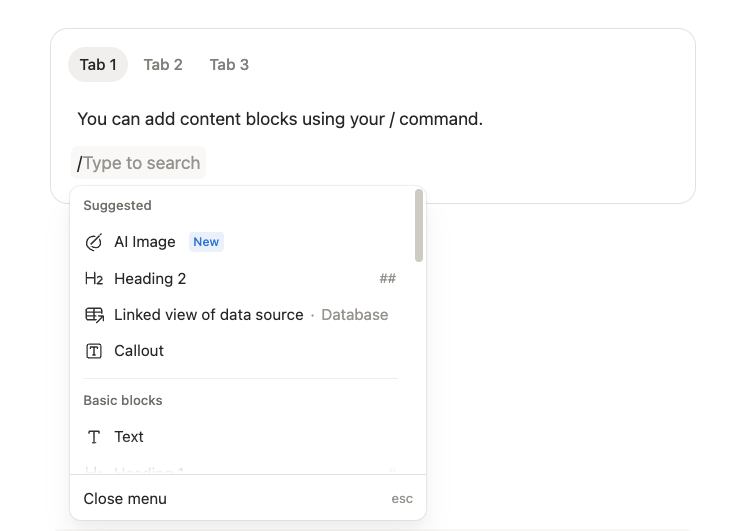
Tabs let you organise content into clean, horizontal sections on a single page, reducing scroll and keeping related information grouped together.
How to add tabs:
On any page, type /tabs.
Click to insert the tab block.
Rename each tab and add an icon if you'd like.
Drop any content blocks inside each tab.
You can nest tabs within tabs, though I'd use that sparingly.
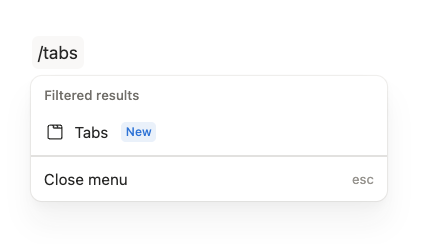
Add tabs to any page using the slash command, making it quick to structure content without creating new pages.
Where this is useful:
Database templates. Create tabs for different project stages, each with filtered task views.
Presentations. Tabs inside slides give a polished, interactive feel.
Comparison layouts. Pros/cons, processes, or any side-by-side content.
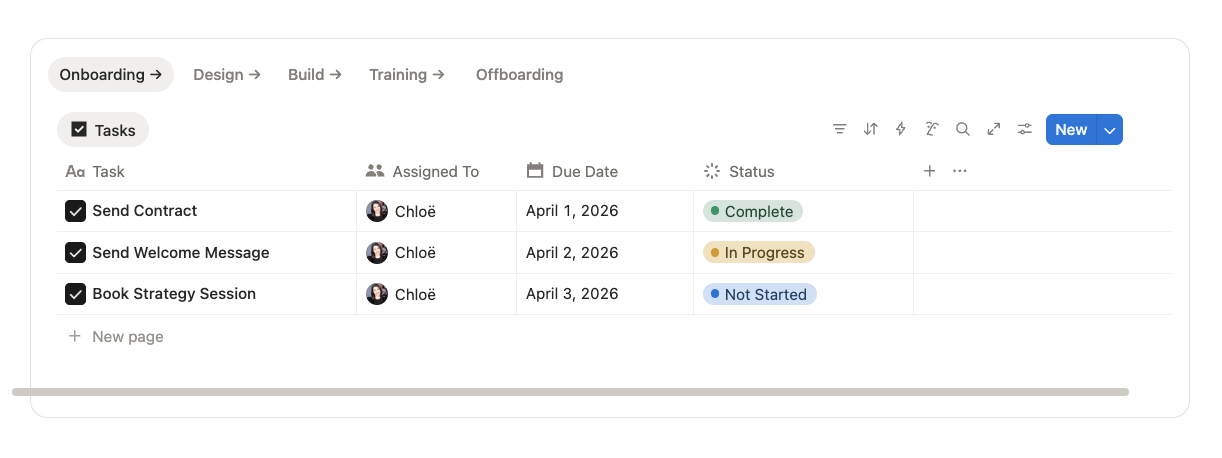
Tabs work particularly well inside database templates, letting you structure workflows like onboarding and delivery stages
HIDDEN BENEFIT
Only the content in the currently selected tab loads at any given time, which improves page speed.
Archive Pages
Hands up if you've ever set up a makeshift "Archive" teamspace or used a checkbox filter to hide old database entries. Now we have a built-in archive feature.
You can archive individual pages or pages within databases.
How to archive a page:
To archive a page, click on the six dots next to the page or locate your page settings (•••) in the top right and select Archive.
If you archive a page in a page, it will still show but it will be greyed out. If it's a parent page, all sub-pages follow automatically. You can click the six dots or click back into the page to unarchive.

Archived pages are greyed out, making it easy to distinguish inactive content without removing it entirely.
How to archive a database page:
When you archive a page in a database, you can find it again by clicking on your database View settings → View archived pages. From here, you can unarchive it.
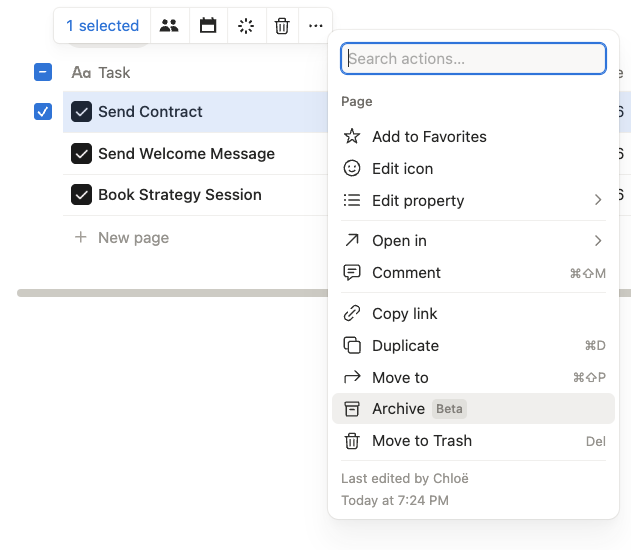
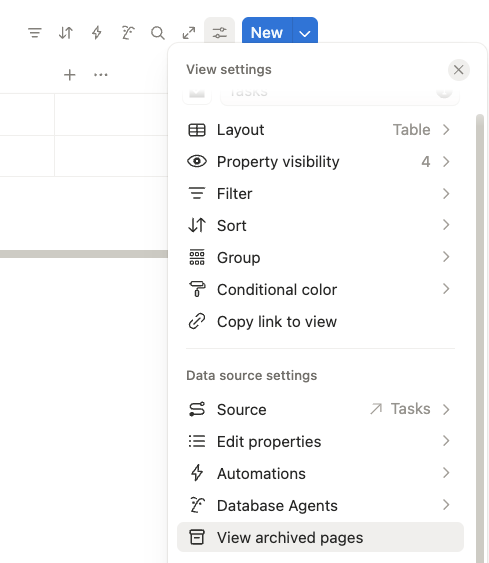
You can archive pages directly from a database, making it easier to manage records without deleting them.
In all instances, archived pages get a banner showing who archived them and when. They're hidden from search and the sidebar by default but still accessible. Links to archived pages continue to work.
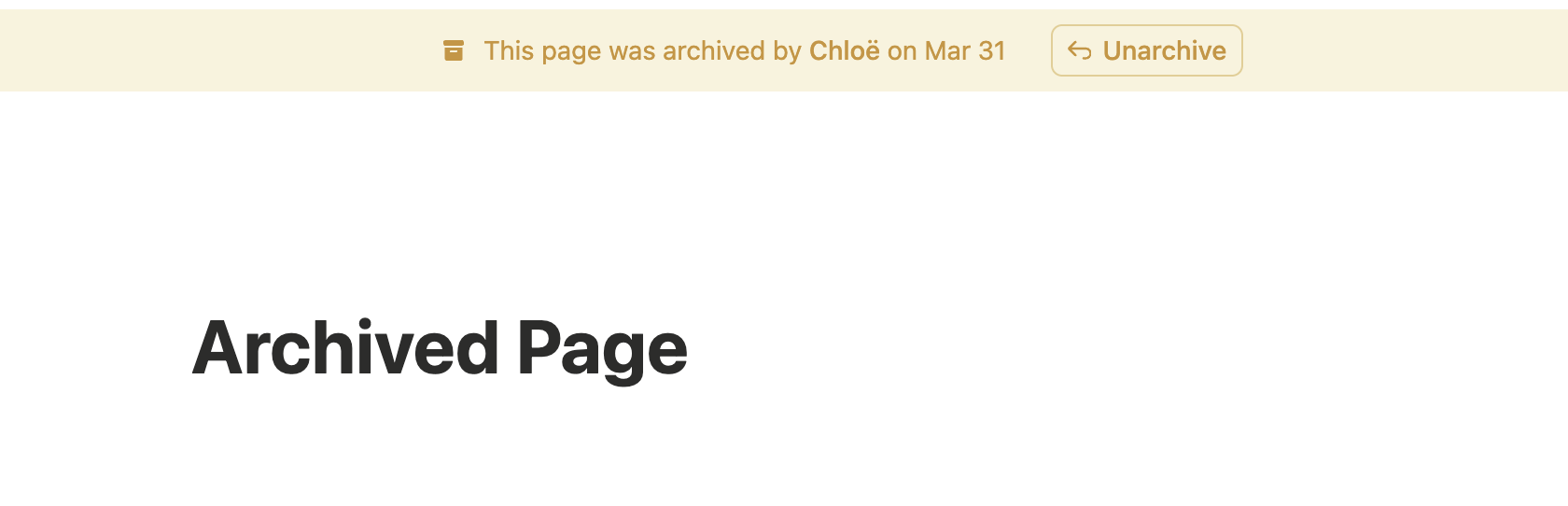
When a page is archived, it remains fully accessible with a clear status banner and the option to restore it at any time.
Where this is useful:
Keeping search clean. Archived pages are de-prioritised in both search and AI results, so your workspace intelligence improves.
Database hygiene. Archived pages are filtered out of views by default.
Retiring old documentation without the anxiety of deleting something you might need later.
CURRENT LIMITATION
There's no single page where you can view all archived content across your workspace. You have to go to each database or page individually.
H4 Headings
Simple but useful. We now have H4 headings and H4 heading toggles. This helps with table of contents structure and gives you another level of hierarchy on the page. This can also be helpful if you are translating Notion content into another platform through an automation. For example, Notion blog content into WordPress.

Notion now supports H4 headings and toggle headings, giving you more control over page structure and hierarchy.
Notion Library
As our workspace grows, it's easy for our sidebar to become crowded. Library is designed to be a full-page view for your most important content: Teamspaces, Recents, Favourites, Private pages, and Shared pages, each in their own tab.
The idea is that you customise your sidebar to show only what you use daily. Everything else lives in Library, ready when you need it.
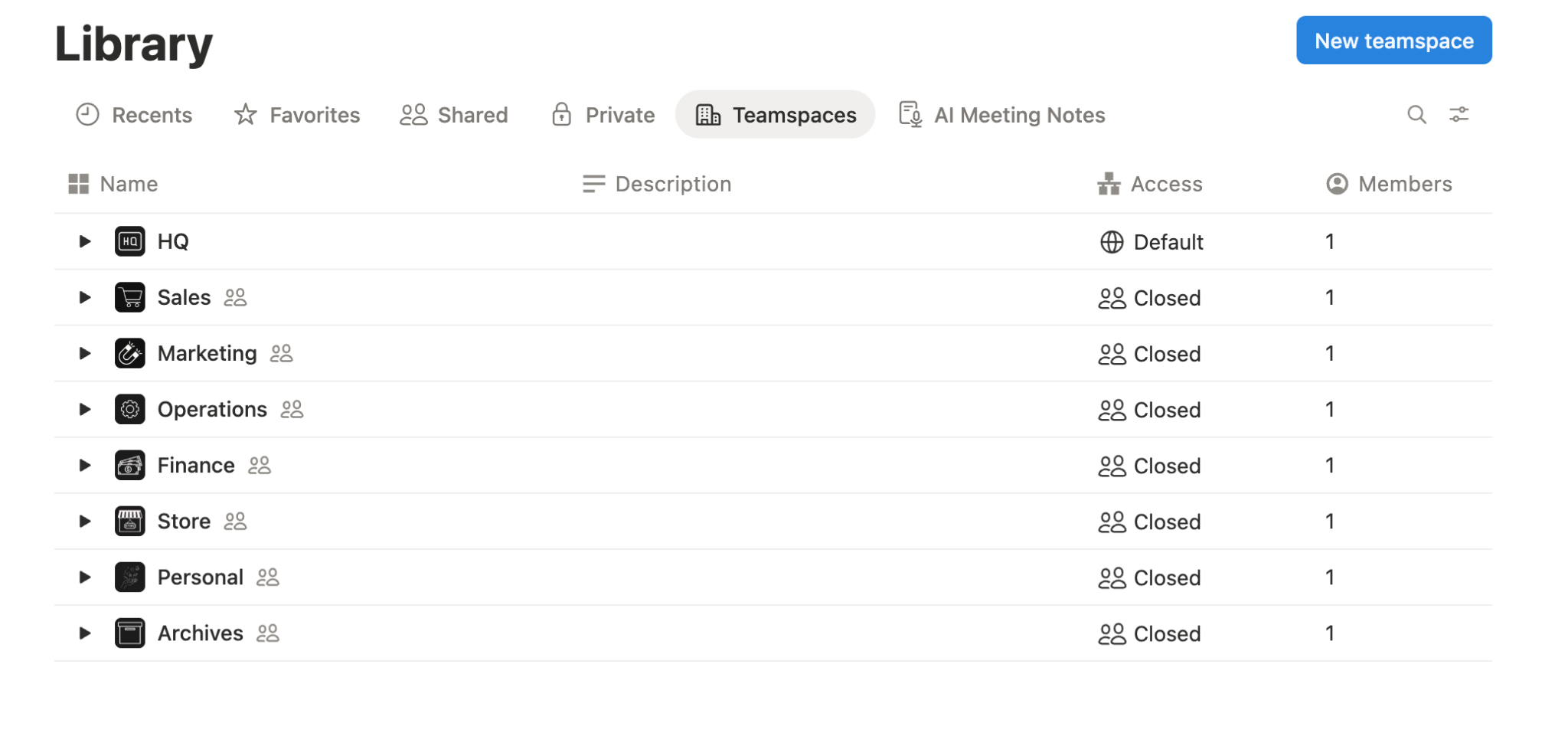
Library gives you a central place to navigate your workspace, keeping your sidebar focused while everything else remains easily accessible.
New Sidebar
Notion have introduced a new sidebar layout. This adds dedicated spots for Home, Chats, Meetings, and Inbox, and it's designed to make agent interactions and past chats easier to find. As we start to use these features more, this sidebar becomes more intuitive than the previous setup that was designed pre-AI.
This is optional right now. If you'd like to try it out, you can go into your Settings → General under Workspace → Sidebar. Here you can toggle to your preferences.
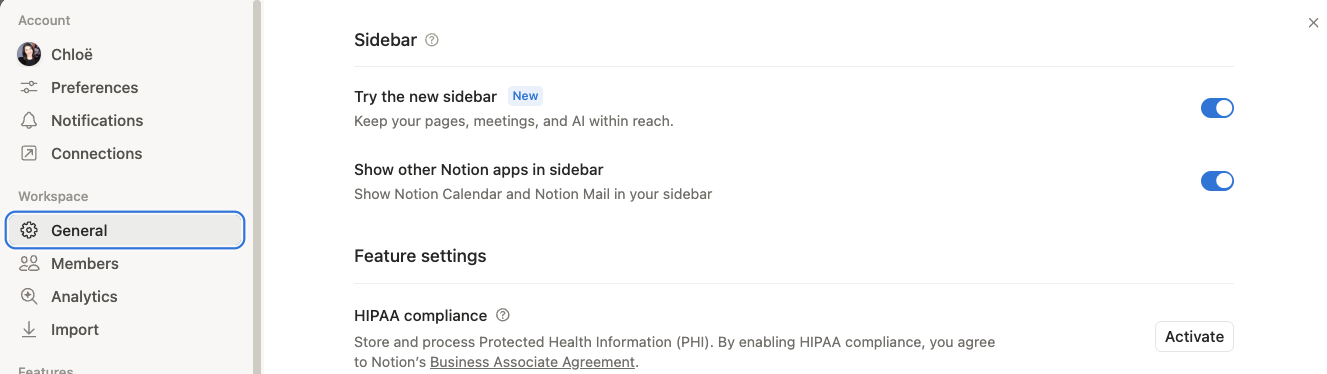
The new sidebar can be enabled or disabled in settings, allowing teams to adopt it at their own pace.
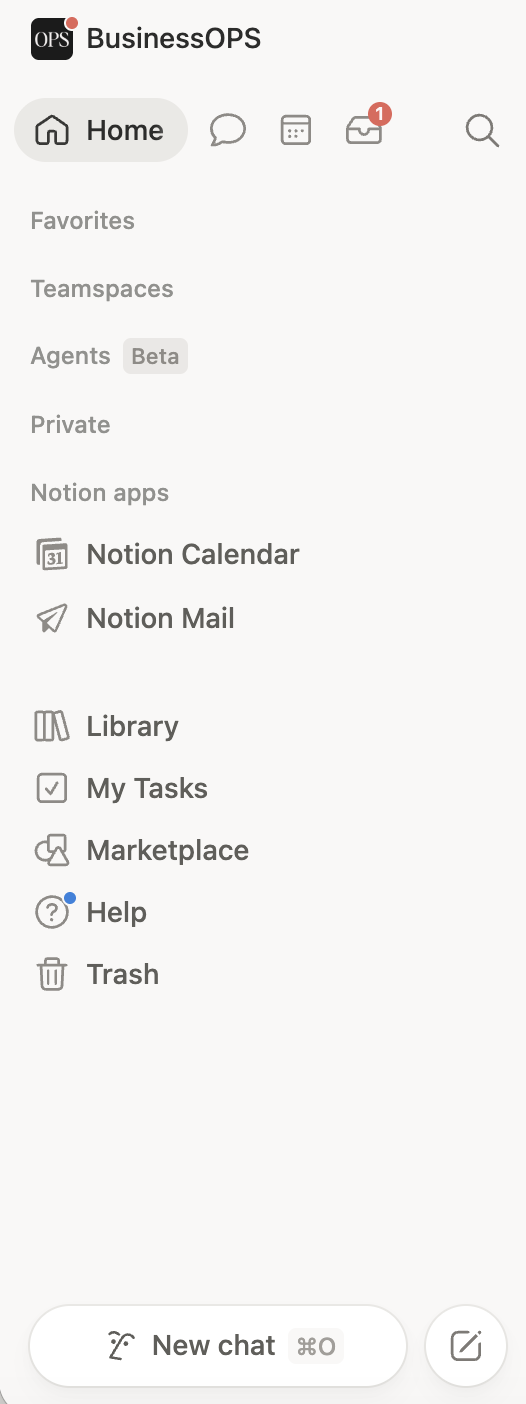
The new sidebar introduces dedicated spaces for agents, inbox, and key tools, making it easier to navigate and manage AI-driven workflows.
AI and Automation
Availability: AI features require a Business or Enterprise plan.
Notion's AI features got a significant upgrade this quarter, both in capability and in how they're integrated.
Unified AI on Page
Previously, the personal agent (bottom right corner) and the page-level AI assistant were two different systems. The personal agent felt noticeably more advanced. They've now been merged into one. The same AI you chat with in the sidebar is the same one working on your page.
The bonus: you can move any page-level AI conversation into your personal AI chat to continue it on the side.
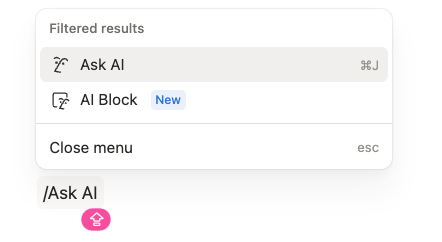
AI is now embedded directly into the page experience, accessible through slash commands for faster, in-context workflows.
Notion Skills
Skills let you save a prompt you repeat into a reusable command. Think of them as shortcuts for your AI. If you have used Claude Skills, this is Notion's version of the same feature but integrated into your Notion workspace. The idea is that your Notion workspace, with all of your context integrated, becomes your AI platform and tool of choice.
How to set up a Notion Skill:
Go to Settings.
Select Notion AI under Features.
Scroll down to Skills and + Add a Skill.
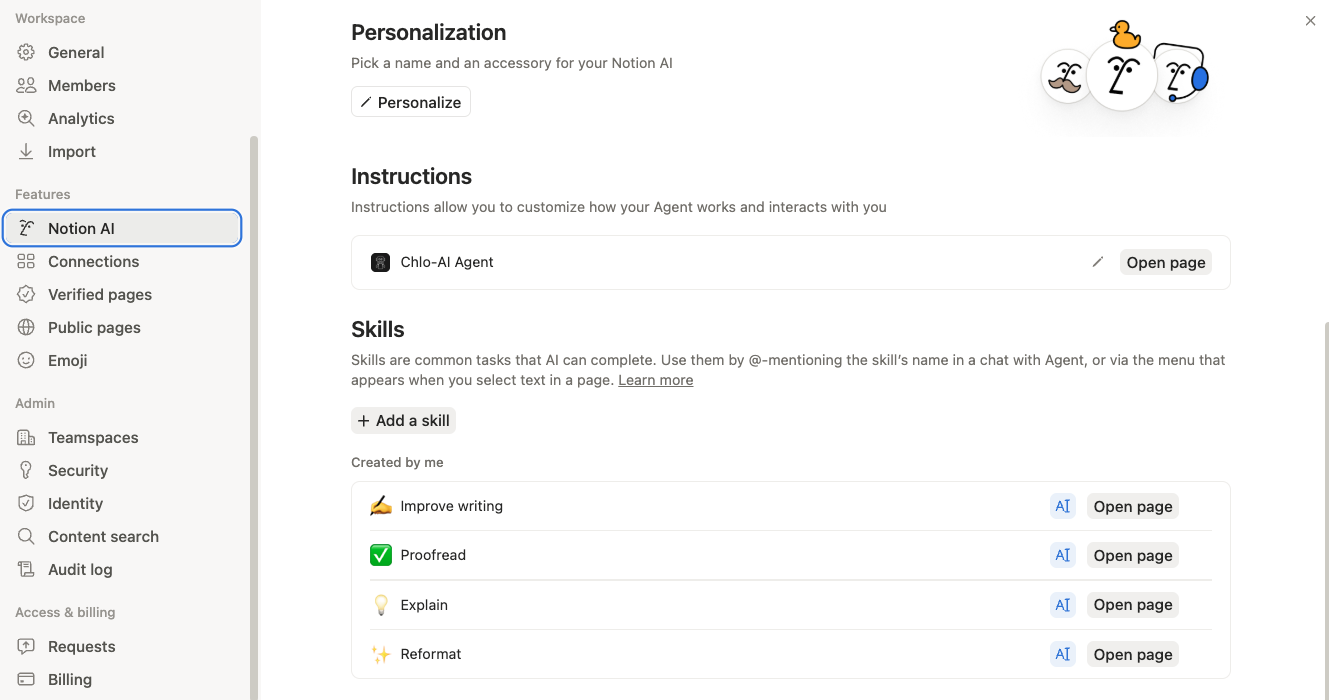
Skills let you save repeatable prompts as reusable actions, so you can standardise how work is generated across your workspace.
Notion gives you a few basic starting prompts but these can be a lot more specific to your business.
Where this is useful:
How to generate proposals from meeting notes
How we format blog posts
How we set up a new client project
One of the big benefits I see here is that we can give our Custom Agents access to these skills. Instead of packing everything into general instructions, the agent can tap into specific skills when needed for a specific job. This translates into simpler instructions, faster responses, lower costs and better output.
You can access them via chat (using an app mention) or by highlighting text and selecting a skill from the menu. So think, you could highlight a sales call transcript in Meeting Notes → Generate proposal.
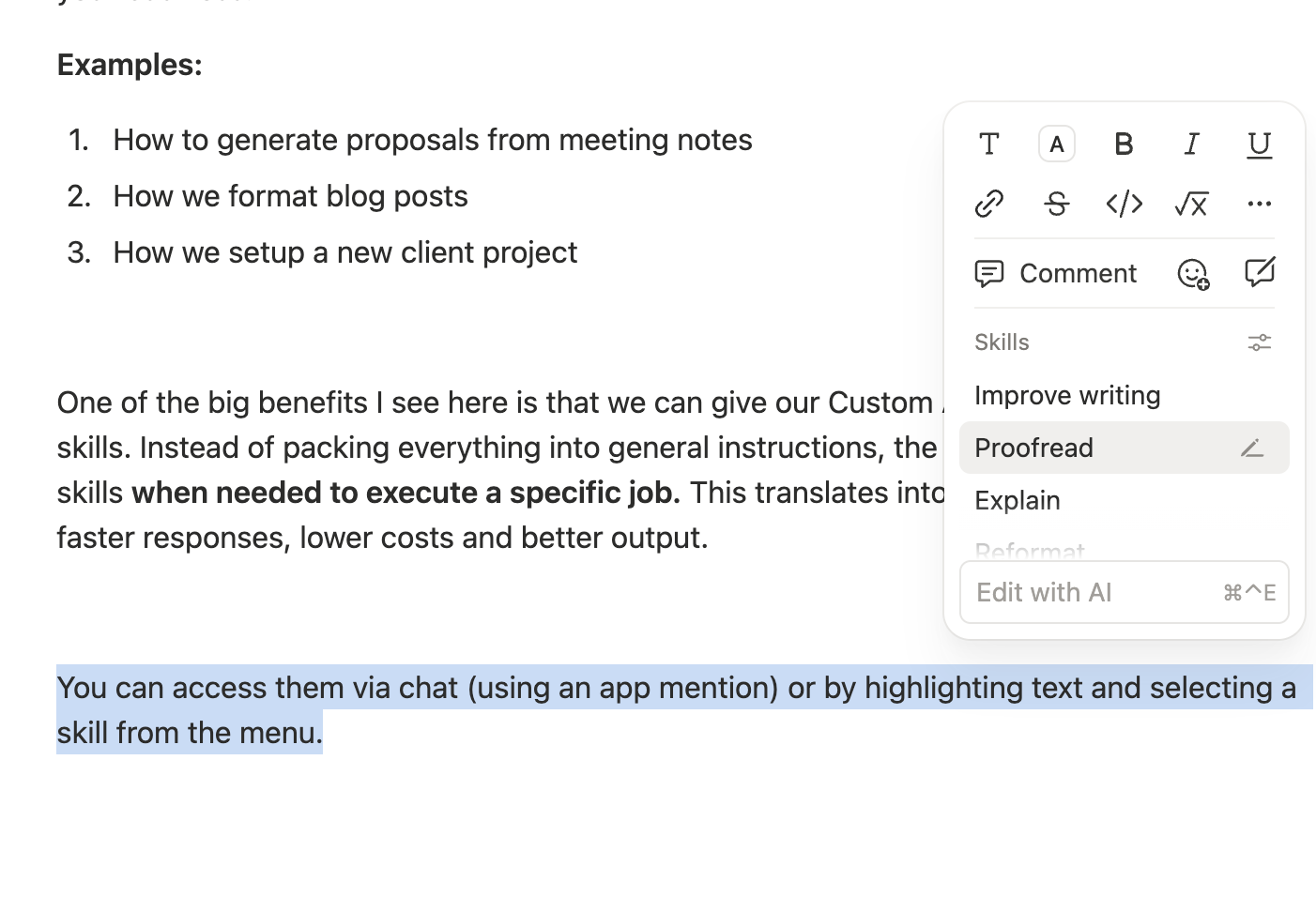
Skills can be applied directly to selected text, making it easy to run specific actions exactly where you need them.
Custom Meeting Note Instructions
Speaking of meeting notes, you can now set up custom instructions for how your AI meeting notes are summarised. This means you can tailor what gets captured and how it's structured, specific to the meeting type.
How to set up custom instructions:
Locate your AI Meeting block either on a page or within a database template if you want to set this up for recurring use.
Click on your meeting note Settings, then select Instructions.
Add your custom instructions for what the AI should capture.
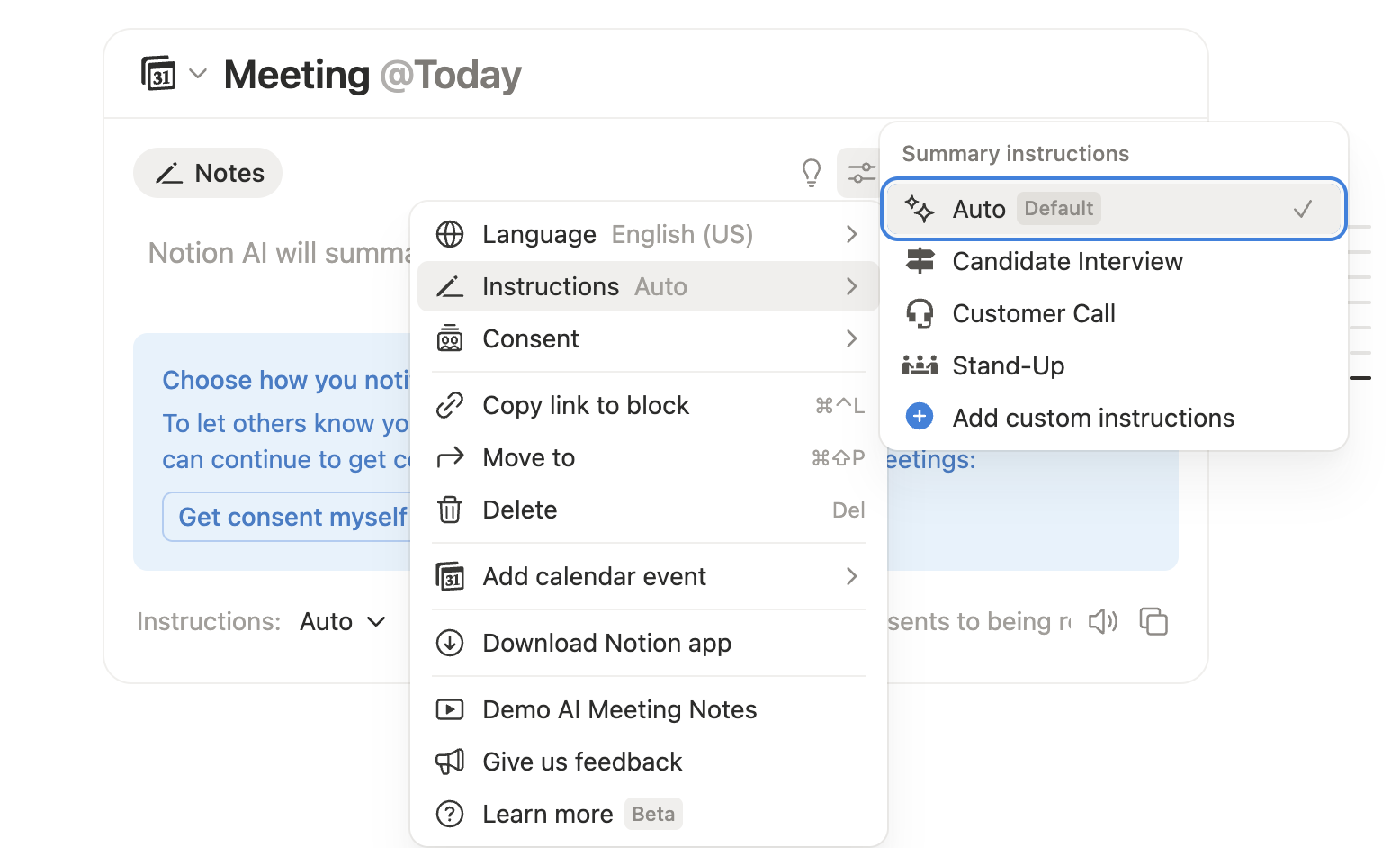
You can customise how AI meeting notes are structured by setting instructions based on the type of meeting, from interviews to stand-ups.
Where this is useful:
Sales calls could pull out pain points and objections or key information required to generate a proposal.
Content planning meetings could extract topic ideas and action steps.
Weekly stand-ups could focus on decisions made and owners assigned.
Database Agents
Availability: Business and Enterprise plans.
Database Agents are AI assistants that sit inside your database and keep it up to date automatically. They use context from the page, your workspace, and the web.
How to create a database agent:
Go to your database View Settings → Database Agents. Alternatively, click on the property you want to create an agent for → Select Create agent.
You can set it up manually or by prompt. You have full control over when it's triggered, the access provided and the model used.
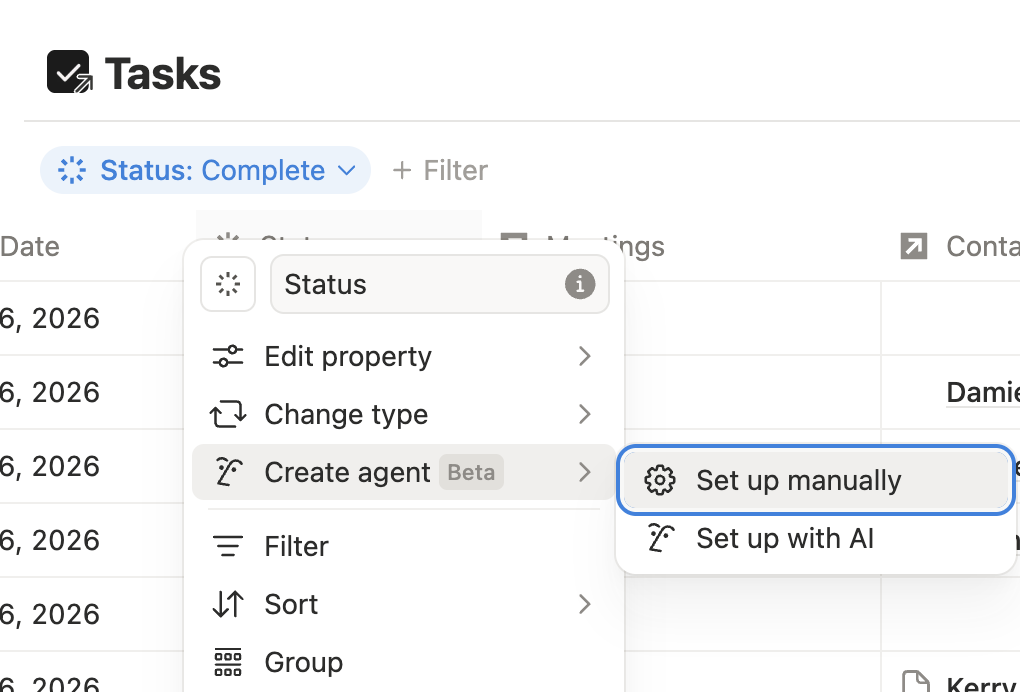
Database Agents are created directly from a property, allowing you to automate updates based on structured data within your database.
Database Agents are considered a Custom Agent, meaning they are free to trial until 4 May 2026. After that, they will use Notion credits. Testing during the free period will give you accurate cost estimates.
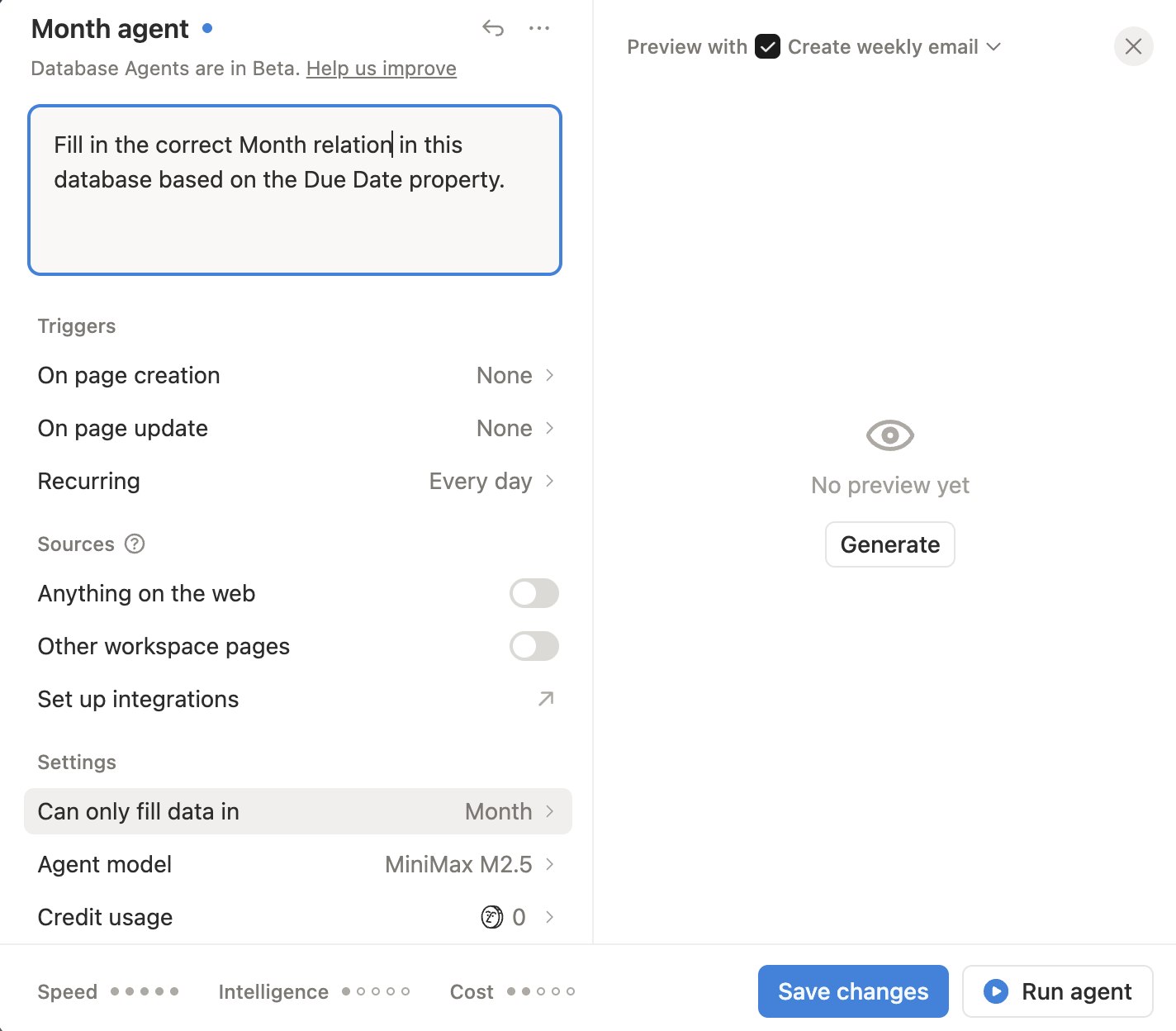
Database Agents can be configured with specific instructions, triggers, and data sources, giving you control over how and when updates happen automatically.
When applied, you will see an agent appear next to the properties you have provided the agent access to.
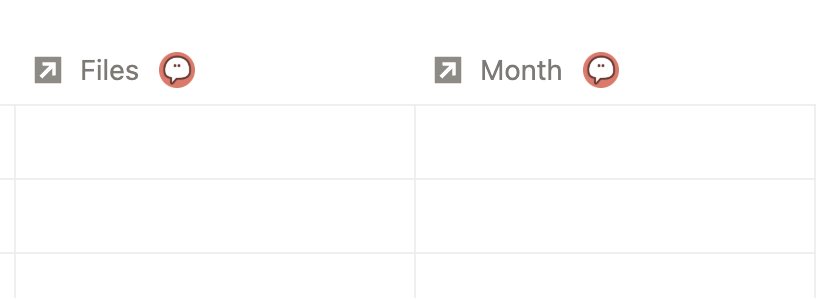
When a Database Agent is applied, it appears directly on the properties it manages, making automation visible at a glance.
You can click back in to edit or click the three dots to delete any time.
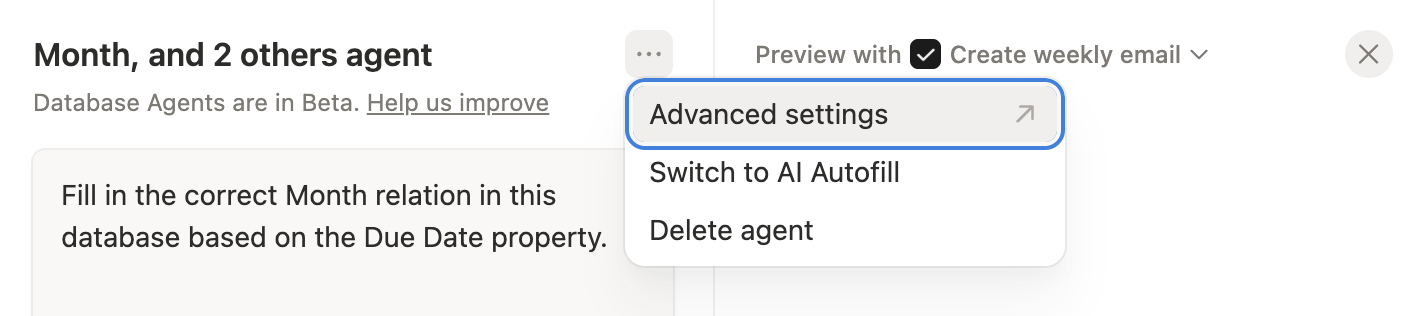
Database Agents can be edited, switched, or removed through their settings, giving you flexibility as your workflows evolve.
You can track usage by going to Settings > Notion AI > Credit Usage.
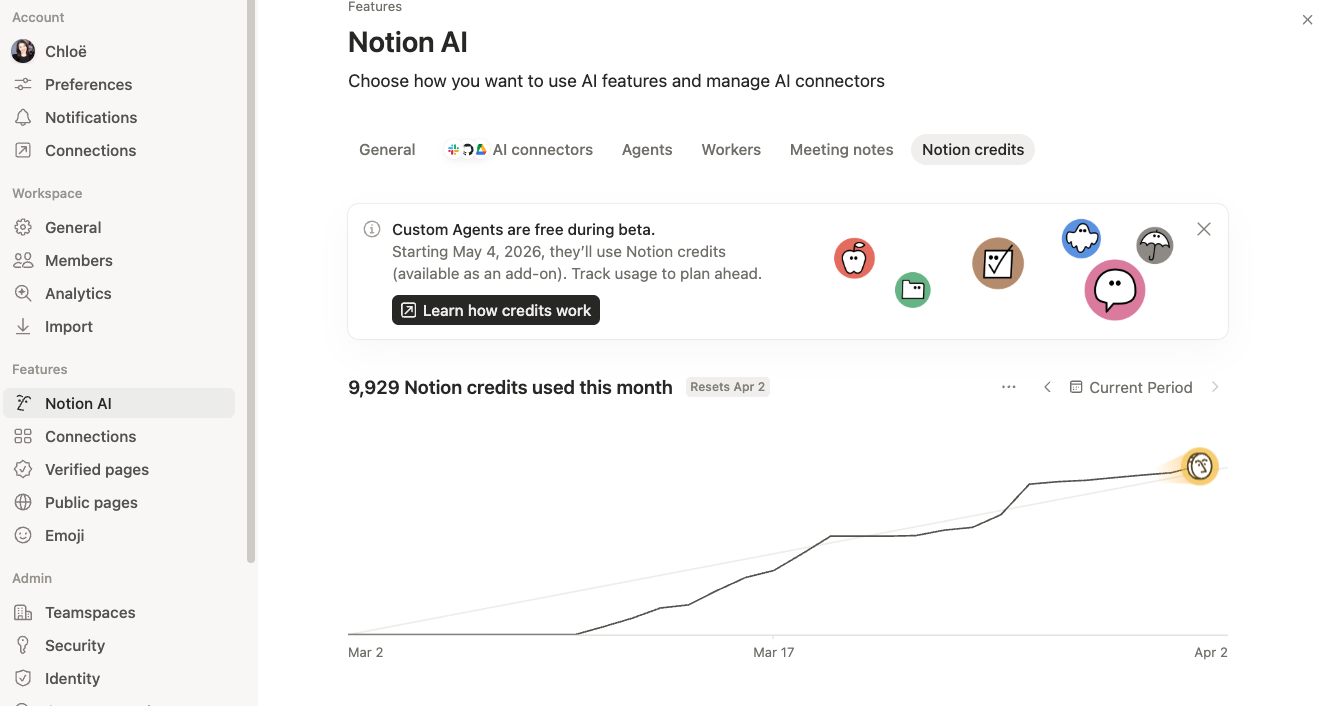
You can track AI credit usage over time, helping you understand cost, optimise workflows, and plan how agents are used across your workspace.
AI Notes and Agent on Mobile
Everything the Notion Agent can do on desktop now works on your phone. One tap starts AI note transcription (even when you switch apps or lock your screen), and it summarises everything into clear summaries, action items, and shareable docs.
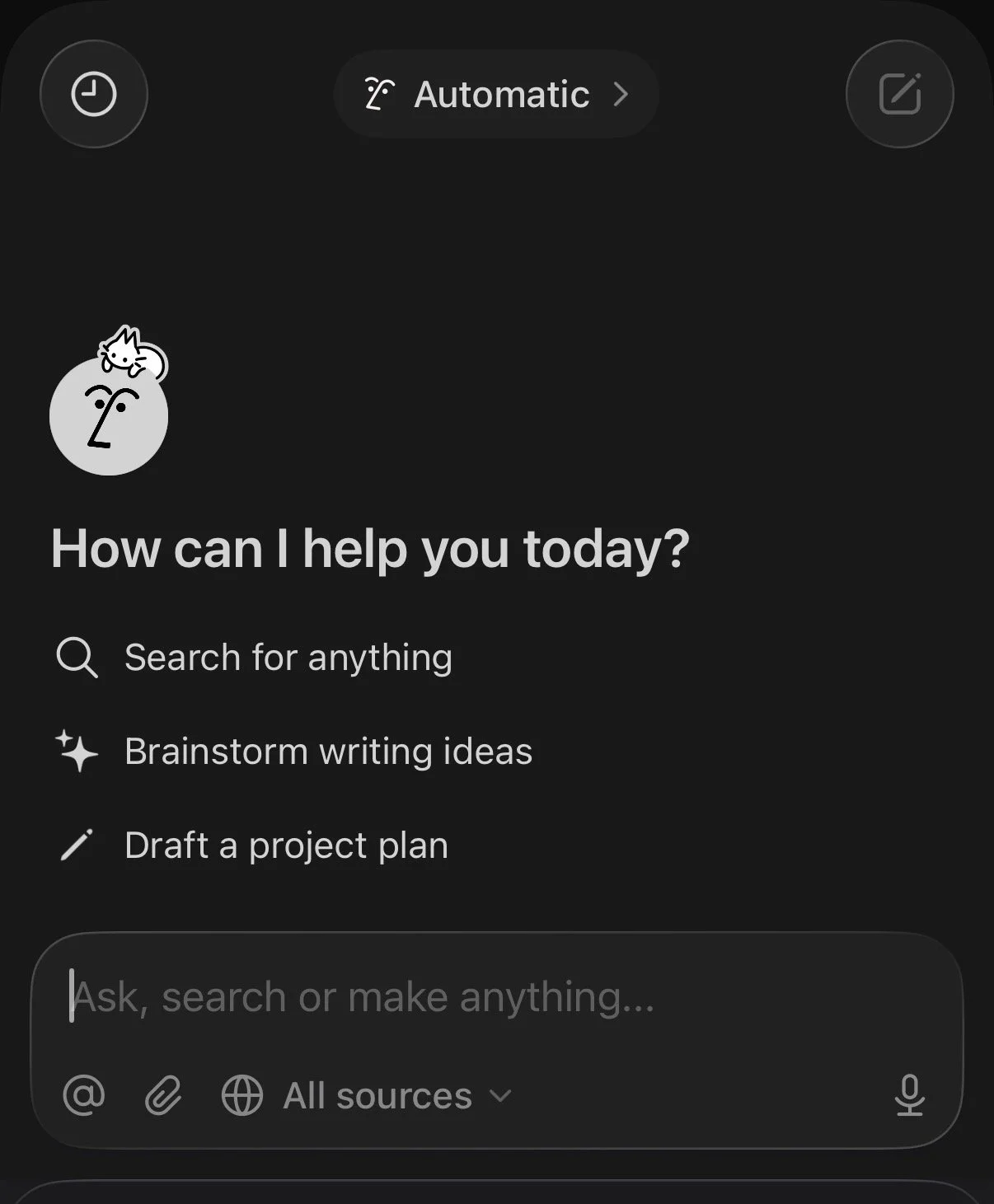
AI on mobile gives you a central place to search, think, and create, keeping your workspace accessible wherever you are.
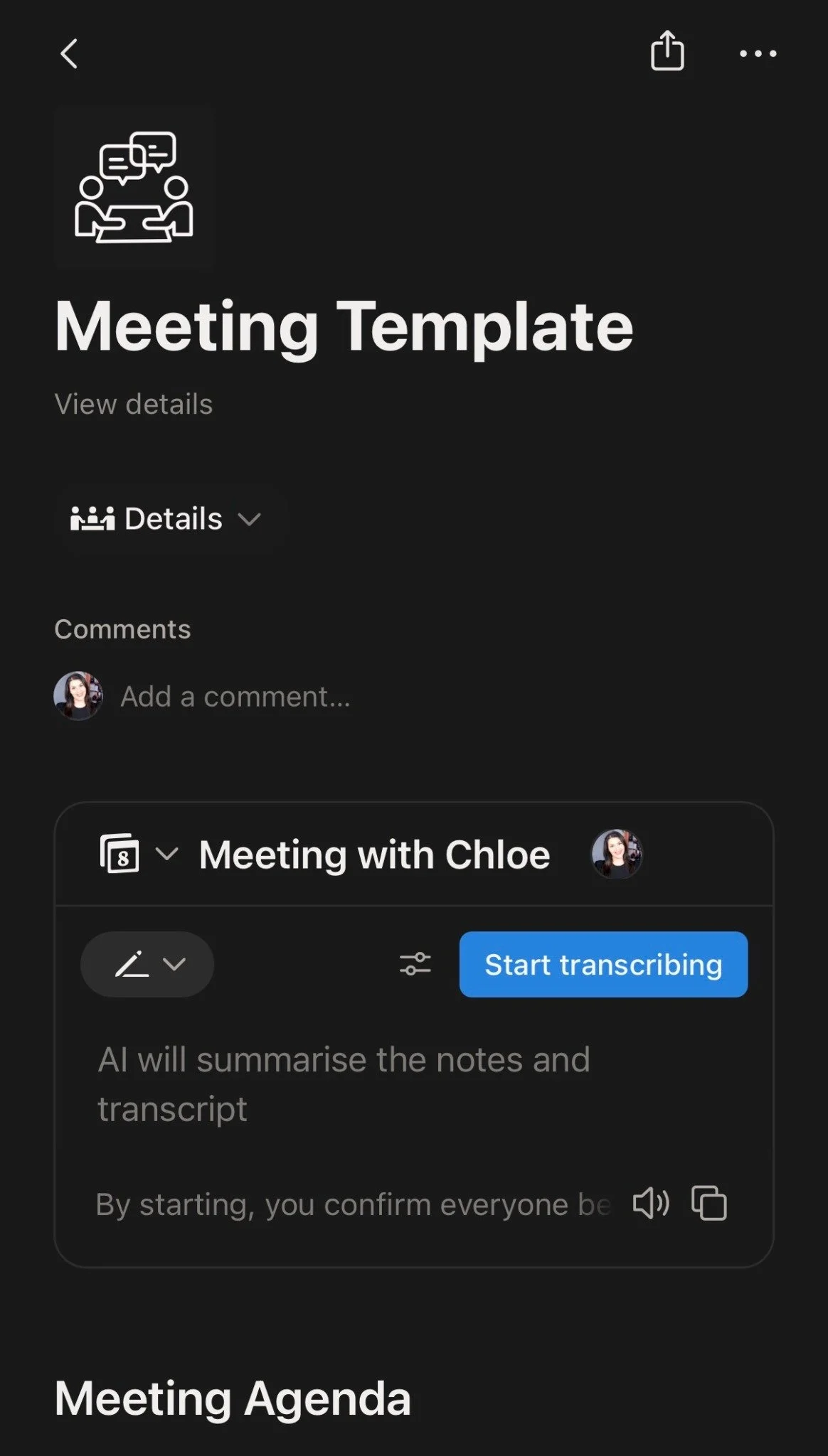
AI meeting notes on mobile can transcribe conversations and generate summaries in real time, even while you move between apps.
Permissions and Collaboration
"Can Create Pages" Database Permission
This is a quiet update that solves a long-standing frustration. The new permission level lets users create new pages in a database without being able to view or edit other entries they shouldn't have access to.
How to implement:
Go to your Share settings in the top right corner.
Set the database access to the lowest level. If this is used with clients, set it to No access.
Then create a page-level access rule based on your Person property, and define the appropriate permission level.
Finally, toggle on Can also create pages.
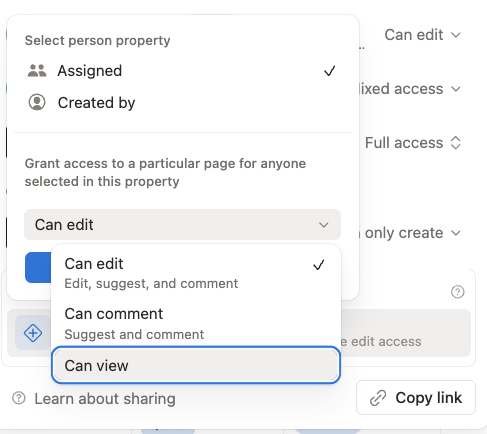
Page-level access can be assigned based on a person property, letting you control exactly who can view or edit each entry.
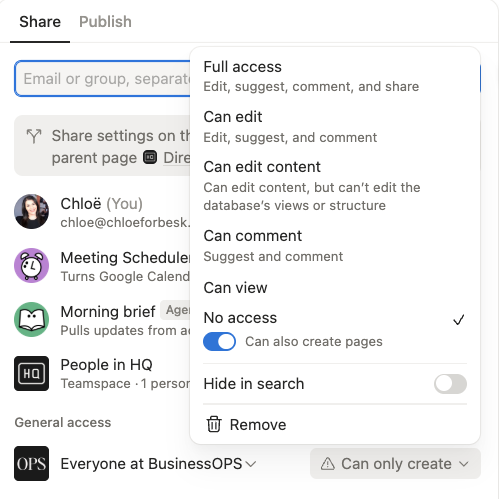
The “Can create pages” permission lets users add new entries while controlling exactly what they can access and edit.
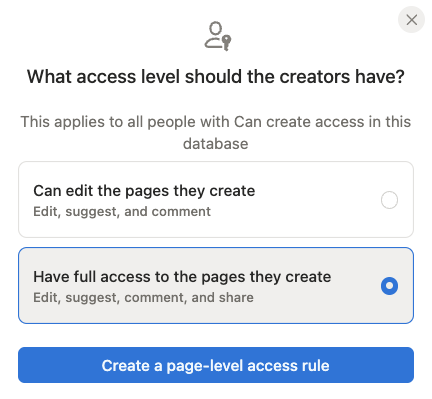
Users can create new pages without seeing other entries, giving you more control over access in shared databases.
Where this is useful:
Client portals. A client can create their own tasks directly instead of going through a form (which was clunky and frustrating, especially when they needed to create multiple entries).
Shared databases with sensitive entries. Team members can add their own records while being locked out of everyone else's.
Previously, the workaround was forms, and forms meant one submission at a time with no ability to edit after the fact. This is a much better experience.
Multi-Account Notion Mail
You can now manage multiple email addresses under one Notion account and switch between personal and work inboxes.
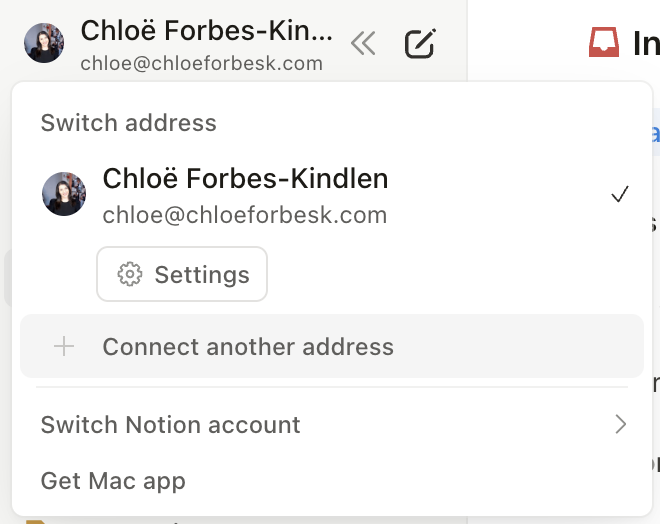
You can manage multiple email addresses within Notion and switch between them without leaving your workspace.
Small but Noteworthy
Video Preview on Card Views. Videos now play in the preview on Board and Gallery views. Great for course databases, internal training libraries, or YouTube content trackers.
Number Charts for Dashboards. A new chart type that highlights a single key metric (like tickets closed this month) with conditional formatting. Simple and effective for dashboards.
People Directory. A pre-built, customisable database showing everyone in your workspace. Import from HR systems or build from scratch.
AI Analytics (Enterprise). Admins can now see AI usage over time, including who's using it most and which features drive engagement.
Pages load 28% faster. No explanation needed.
What I'd Focus On First
If you're looking at this list and wondering where to start, here's what I'd prioritise:
Try Custom Agents before May. The free period is your window to experiment without cost. Start with one simple workflow.
Explore Dashboards if you're on Business plan. Especially dashboard tabs in page layouts.
Set up Archive for your workspace. Quick win. Cleaner search, cleaner AI results, less clutter.
Configure custom meeting note instructions. If you use AI meeting notes at all, this takes five minutes and immediately improves the output.
It's been a packed quarter. If there's a feature here you'd like me to cover in more depth, leave a comment. I'm building out individual guides and your input shapes what I prioritise.
And if you want help implementing any of these in your workspace, that's what I'm here for.
FAQs
-
It depends on the feature. Tabs, Archive, H4 Headings, Library, the new Sidebar, and the "Can Create Pages" permission are available on all plans.
Presentation Mode requires Plus or above.
Custom Agents, Dashboard Views, Database Agents, and AI features (Skills, Unified AI, Custom Meeting Note Instructions) require a Business or Enterprise plan. -
Your personal agent is the AI assistant in the bottom right corner of your workspace. You ask it something, it helps, the conversation ends. It's included with your Business or Enterprise plan at no extra cost. Custom Agents are autonomous. You define a job, set a trigger or schedule, and they run continuously in the background without prompting. Custom Agents will use Notion credits after the free trial ends on 3 May 2026.
-
They are free to try through 3 May 2026. After that, they run on Notion credits at $10 per 1,000 credits. Credit usage depends on task complexity, the number of tools involved, and the AI model selected. You can monitor your usage in Settings → Notion AI → Credit Usage.
-
No. Dashboard Views and chart views are only available on Business and Enterprise plans. This is partly due to the computational cost of rendering charts across large databases.
-
No. Archived pages are hidden from search and sidebar by default, but they are still accessible. Links to archived pages continue to work. You can unarchive at any time.
-
Yes. AI Meeting Notes and the Notion Agent both work on mobile. One tap starts transcription, and it continues running even if you switch apps or lock your screen.
-
No. Skills are saved prompts that you or your AI can reuse. Custom Agents are autonomous workflows that run on their own. However, you can give Custom Agents access to your Skills, which keeps agent instructions simpler and output more consistent.
-
At the time of this article publication, it’s optional. You can opt in via Settings → General under Workspace → Sidebar and toggle back at any time.
